> ## Documentation Index
> Fetch the complete documentation index at: https://docs.modellix.ai/llms.txt
> Use this file to discover all available pages before exploring further.
# Use Modellix with the DeepSeek Harness Plugin
> Install the dsh-modellix plugin in DeepSeek Harness to use Modellix LLM models, media generation, and Web Search and Web Fetch with one API key.
[dsh-modellix](https://github.com/Modellix/dsh-modellix) is the official [DeepSeek Harness](https://github.com/deepseek-ai/deepseek-harness) plugin for Modellix. One [API key](https://www.modellix.ai/console/api-key) enables a chat-first workflow: ask in the session, keep the context in the conversation, and inspect completed work without leaving Harness.
The plugin is also listed in the [awesome-dsh-plugin](https://awesome-dsh-plugin.com/) community catalog.
The plugin registers its own Harness tools and provider. It does **not** install or invoke [`modellix-cli`](/ways-to-use/cli) at runtime.
This page covers the DeepSeek Harness plugin. For the Open Plugins package used in Claude Code, Codex, and Cursor, see [Plugin](/ways-to-use/plugin). To add only the LLM gateway by hand—without media or Web tools—see [DeepSeek Harness](/llm/agent/deepseek-harness).
Harness and this plugin currently use prerelease interfaces. Check the plugin [CHANGELOG](https://github.com/Modellix/dsh-modellix/blob/main/CHANGELOG.md) and peer dependencies before upgrading Harness.
## What the Plugin Provides
| Area | What you can do |
| --------- | ---------------------------------------------------------------------------------------------------------------------------------------------------------------------------------------- |
| **LLM** | Choose live Modellix models from the Harness model selector. The plugin loads the current catalog; it does not invent fallback entries when the catalog is unavailable. |
| **Media** | Ask the Agent to create, edit, animate, or narrate media. Results appear as live chat cards and in the right-side **Modellix Design** panel. |
| **Web** | Ask a current, external, or source-verification question in normal language. The Agent calls [Web Search](/api/web-search) and [Web Fetch](/api/web-fetch) when it needs the public web. |
You can turn Design, LLM, and Web on or off independently in Modellix settings.
## Requirements
* [DeepSeek Harness](https://github.com/deepseek-ai/deepseek-harness) `0.1.1-rc.2`
* Node.js `^22.19.0` or `>=24.0.0` for the published package
* A Modellix [API key](https://www.modellix.ai/console/api-key)
## Install
Install the package in the Harness Web profile, inspect the merged configuration, then start or restart that profile:
```bash theme={null}
dsh plugin --profile web add dsh-modellix
dsh --profile web --dump-config
dsh --profile web
```
`--dump-config` should contain the `dsh-modellix` bundle layer and a plugin row with id `modellix`. Replace `web` if you use another profile. Restart the running profile after you install or update the plugin.
To install a trusted local build from a clone of [dsh-modellix](https://github.com/Modellix/dsh-modellix):
```bash theme={null}
pnpm install --frozen-lockfile
pnpm run verify:release:static
pnpm pack
dsh plugin --profile web add ./dsh-modellix-0.2.0.tgz
```
## Configure the API Key
Create or copy a key in the [Modellix Console](https://www.modellix.ai/console/api-key) before you connect the plugin.
Start the Harness Web UI. On first use, open **Connect Modellix**.
Enter a valid Modellix [API key](https://www.modellix.ai/console/api-key). Keep **Design**, **LLM**, and **Web** enabled unless you intend to turn one capability off.
Choose **Save and enable**. Then open **Settings → Modellix** and confirm that the Credential status and LLM catalog are healthy.
The stored key is write-only. After save, the UI shows status and source, never the key itself.
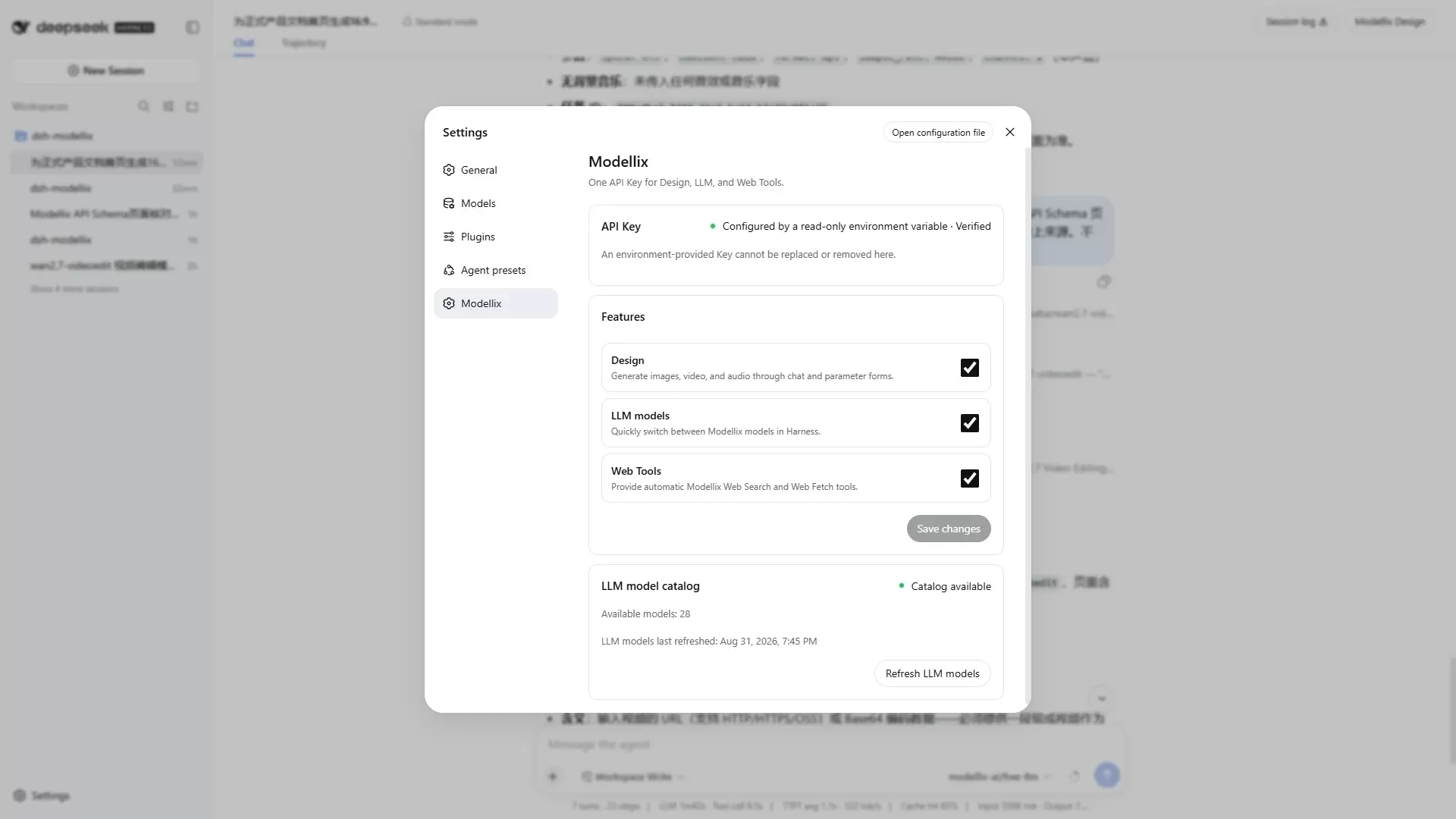
Alternatively, provide `MODELLIX_API_KEY` in the Harness launch environment. Environment credentials are read-only in the UI and require a Harness restart after you replace the value.
Do not put a real key in a repository, command argument, URL, browser storage, log, screenshot, or test snapshot.
Select **Configure later** only when you want to postpone setup. The plugin stays unavailable and asks again the next time you use an enabled Modellix capability.
## Use Modellix LLM Models
When LLM is enabled, the plugin reads the live catalog and adds those models to the Harness model selector.
In **Settings → Modellix**, leave LLM on. Check catalog status and count, or choose **Refresh** if the list looks stale.
Open the Harness model selector and choose a model in the Modellix group. Send the next Agent turn.
The provider is OpenAI-compatible and uses the Modellix LLM gateway. Provider retries are `0`. If the catalog cannot load, the plugin does not fabricate model entries.
You can still add Modellix as a custom `llm-pi-ai` provider by hand. That path covers LLM only. See [DeepSeek Harness](/llm/agent/deepseek-harness) for the form and `settings.yaml` values.
Full Model IDs and rates: [Models & Pricing](/llm/overview#models-and-pricing).
## Create Media in Chat
Describe the outcome in the conversation. You do not need to name tools or walk through a catalog first.
```text theme={null}
Create a polished 16:9 architectural hero image of a glass botanical research pavilion floating above a dawn cloud sea, with restrained lapis-blue and warm-gold tones, realistic premium materials, no people, no text, and no watermark.
```
The Agent can then:
1. Search the live media catalog when a compatible model is not already known.
2. Read that model's live API schema and use only published fields and values.
3. Reuse the latest relevant result URL for edit, image-to-video, or video-to-video follow-ups instead of starting a new text-to-media task.
4. Upload a session attachment or a workspace file when the schema requires a public media URL.
5. Submit the generation once. An unknown submission outcome is never replayed automatically.
6. Check the task once in the same turn. A background watcher updates the existing result card when the job finishes.
Continue from the previous result in the same session:
```text theme={null}
Turn the image just completed in this conversation into a five-second cinematic video. Slowly push the camera forward and preserve the composition and palette.
```
Generate speech the same way, and keep voice names and audio parameters to values published in the model schema:
```text theme={null}
Generate this English voiceover with a professional narrator, calm emotion, MP3 at 44.1 kHz: “From one idea to images, video, and sound, Modellix Design keeps creation flowing naturally in the conversation.”
```
### Result Cards and Modellix Design
* While a task is running or has failed, the chat card shows a concise header and status. Preview and JSON appear only after success.
* A successful card updates in place with Preview and JSON tabs, image enlargement, and native video or audio players.
* One task maps to one card. A later result lookup does not create a duplicate.
* The right-side **Modellix Design** panel lists only tasks from the current Harness conversation.
* **Add URL to chat** appends the selected resource URL to the composer so you can edit or transform it. **Download** opens the upstream file.
* Result URLs follow the upstream expiry. If the API does not provide one, the plugin applies a seven-day local display limit. It does not keep a permanent media copy.
Open **Modellix Design** from the far right of the conversation header, next to **Session log**. On large screens it is a split panel; on narrow screens it is a full-width overlay.
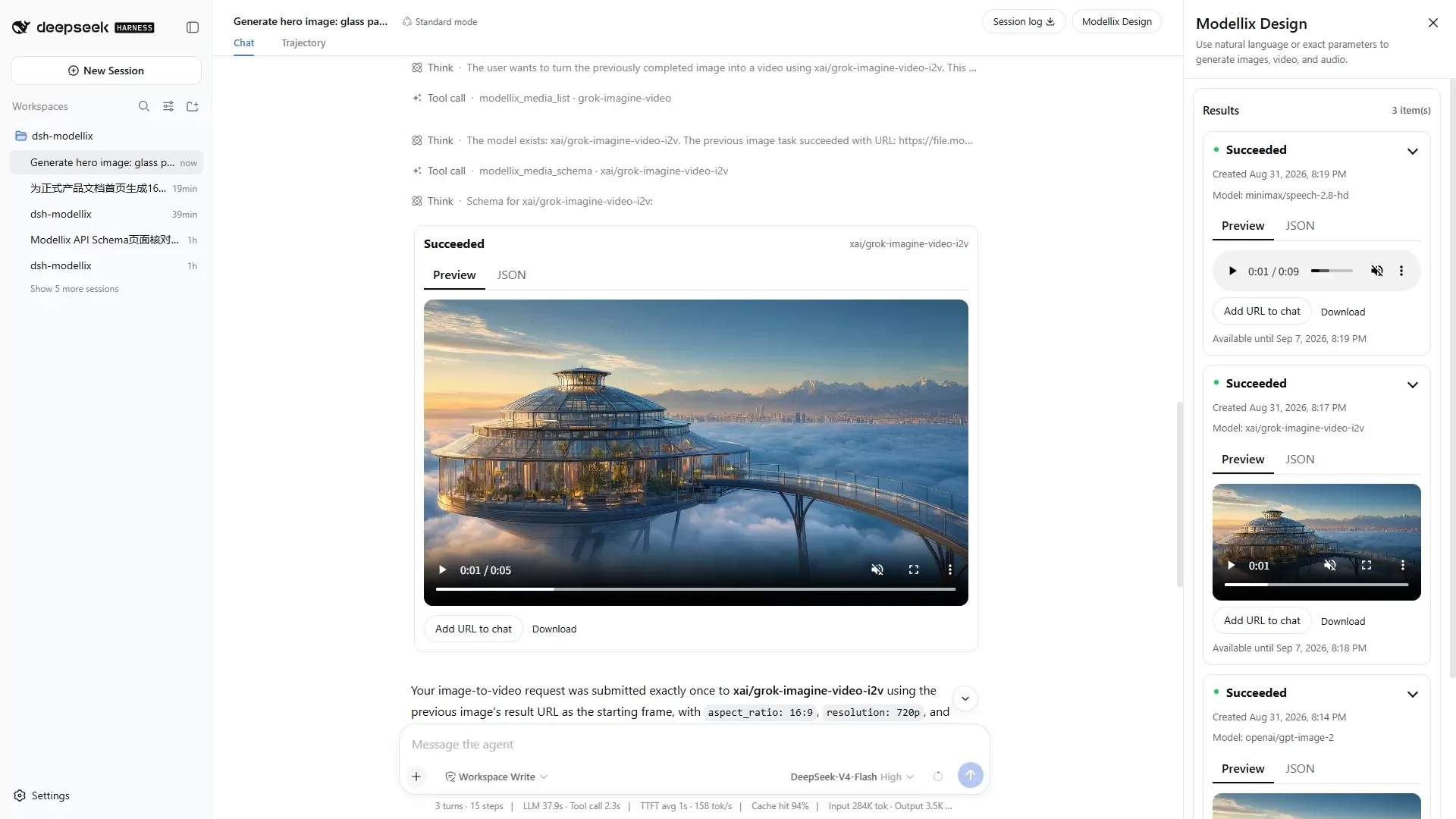
Design must stay enabled for media tools, chat result cards, and the result panel. Turning Design off removes those tools from the Agent.
## Search and Fetch the Web
Ask the question normally. You do not need to say “use search” or “use fetch.”
```text theme={null}
Verify the official Modellix page for alibaba/wan2.7-videoedit. Give its title, one required parameter and what it means, with a source. Do not answer from memory.
```
For current, changing, external, or source-verification questions, the Agent calls `modellix_web_search`. When you provide a public URL, or a search result needs the full page, it calls `modellix_web_fetch`. Failed or unknown Web requests are not repeated automatically.
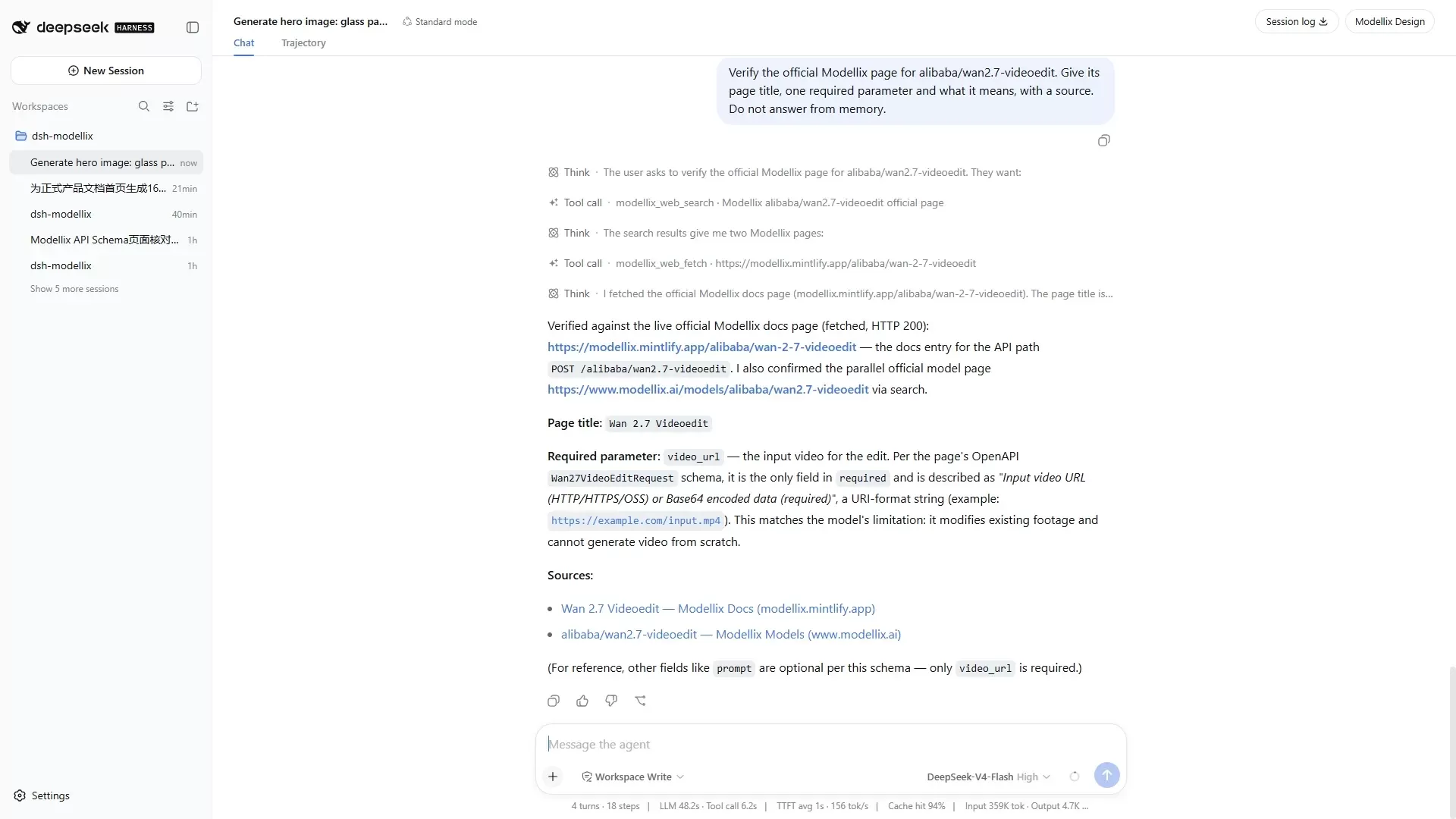
If you explicitly ask the Agent not to browse, it does not call these tools. Web must stay enabled in Modellix settings.
API reference: [Web Search](/api/web-search) · [Web Fetch](/api/web-fetch).
## Settings and Recovery
The Modellix settings section shows:
* Credential configured or verification status, and whether the source is a saved key or `MODELLIX_API_KEY`
* Replace and remove actions for a writable local credential
* Independent **Design**, **LLM**, and **Web** switches
* Live LLM catalog health, model count, refresh time, and a manual refresh
Only HTTP `401` marks a credential invalid. Other failures keep their own recovery states:
| Status | What to do |
| ------------------------------------ | ------------------------------------------------------------------------------------------ |
| `402` | Check account status and balance in the [console](https://www.modellix.ai/console/api-key) |
| `429` | Wait for the rate-limit window, then retry |
| Offline or timeout | Restore connectivity. Do not assume the key is invalid |
| `5xx` | Treat it as a service error. Retry only when the operation is safe to repeat |
| Unknown generation or upload outcome | Inspect the task, transcript, or Modellix record before submitting again |
## Troubleshooting
| Problem | What to do |
| ----------------------------------------- | ------------------------------------------------------------------------------------------------------------------------------------------------------------------------------------------------------------ |
| **Modellix Design** is missing | Confirm Design is enabled, inspect `dsh --profile web --dump-config` for the `dsh-modellix` layer and plugin id `modellix`, then fully restart the profile |
| The Agent does not use Web automatically | Confirm Web is enabled and start a new session so routing instructions load. The tools should appear as `modellix_web_search` and `modellix_web_fetch` |
| A model schema is reported as unavailable | Refresh the live media catalog, use the exact slug from the catalog, and read the schema again. Unsupported contracts block submission instead of guessing |
| A task never updates | Keep the conversation open for the client watcher, confirm the credential has not changed, and check the right-side panel. Do not resubmit because an older assistant sentence still says the job is running |
| Media cannot play | Confirm the result succeeded, the upstream URL has not expired, and the browser can reach the file origin. Running and failed tasks have no player |
## Uninstall
Remove a writable local key in Modellix settings first, or revoke an environment credential in your secret manager. Then remove the plugin and restart the profile:
```bash theme={null}
dsh plugin --profile web remove dsh-modellix
dsh --profile web --dump-config
dsh --profile web
```
Uninstalling does not delete upstream Modellix tasks, external environment variables, or all Harness profile data.
## Next Steps
Add Modellix as a custom provider without the plugin.
Review Model IDs and rates for the live catalog.
Call media models directly with submit-and-poll.
Use the same Web tools outside Harness.