

Requirements
- ComfyUI 0.40.0 or later, with its native VIDEO and V3 node APIs. The initial compatibility baseline is 0.40.0 with frontend 1.55.17.
- Python 3.10 or later, using the interpreter that runs ComfyUI.
- A funded Modellix API key from the Console.
- Internet access to
api.modellix.ai,www.modellix.ai, and the public HTTPS hosts used for media resources. - A local, single-user ComfyUI instance, accessed at
http://localhost:8188/or your configured localhost port.
Install
Git clone is the available installation channel. Registry metadata is included in the package; Registry and Manager availability must be confirmed separately before using those channels.1
Clone the Node Package
From your ComfyUI directory:
2
Install Python Dependencies
Use the same Python interpreter as ComfyUI:For the Windows portable distribution, run its bundled interpreter from the portable directory:
3
Restart ComfyUI
Restart the existing ComfyUI process. Search for Modellix Generate in the node menu under Modellix / Media.
Configure Your API Key
Open Settings → Modellix → API Key. The password field offers:- Session Only: use the key until the ComfyUI process ends.
- Secure Save: store the key in Windows Credential Manager, macOS Keychain, or a supported Linux system keyring. Saving requires an available, unlocked secure backend.
- Clear: remove the session key and saved key. The result reports any secure-storage failure. Environment fallback stays disabled in the current process until you explicitly choose it.
- Use Environment: enable
MODELLIX_API_KEYfallback. A saved secure key has priority over the environment; a session key has highest priority.
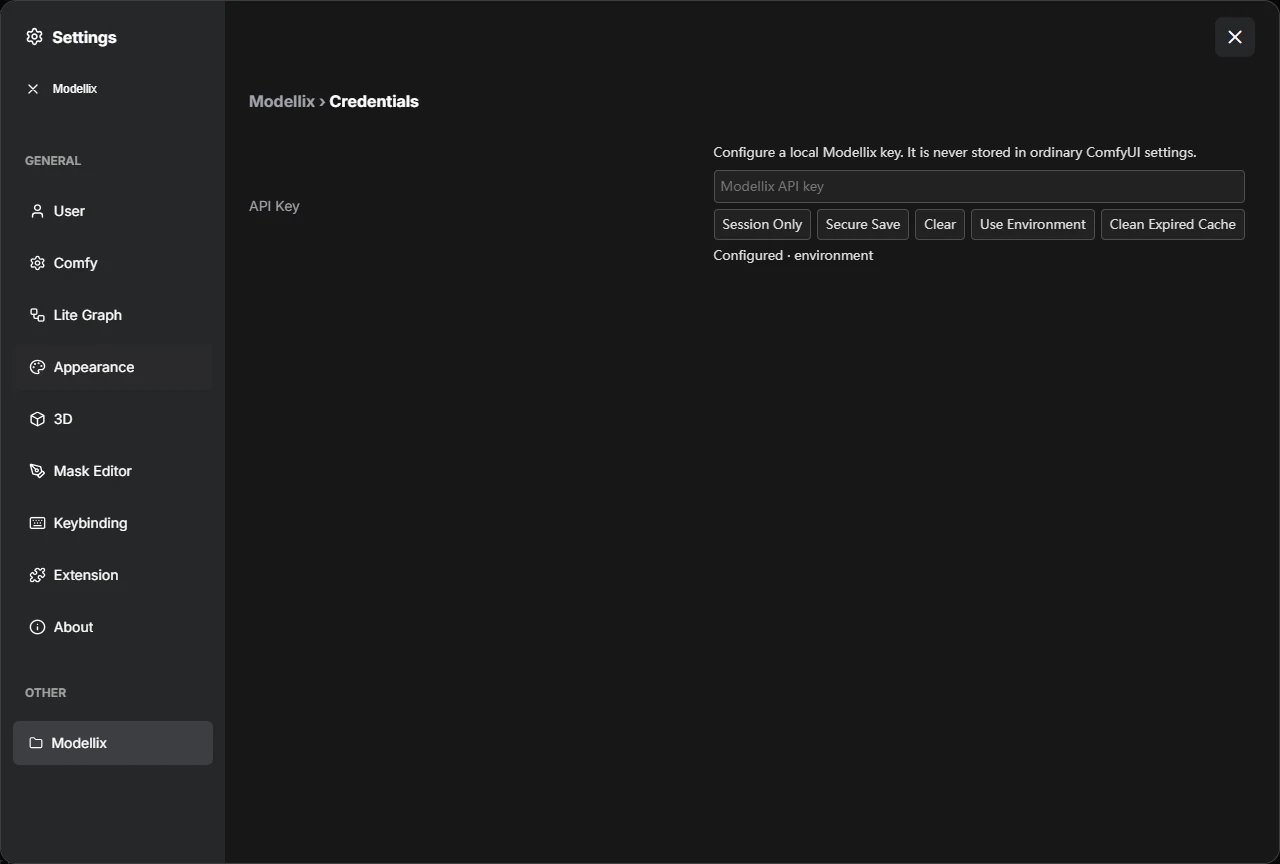
The local password field stays empty after applying a key; status shows only its source.
Generate Your First Image
- Add Modellix Generate.
- Choose the text-to-image category and search by model name, provider, or exact slug, such as
google/nano-banana-2-lite. - Enter the required prompt and review the model’s defaults, limits, and pricing information when available.
- Keep Wait mode and connect
imagesto Preview Image or Save Image. - Queue the workflow. The node reports submission, task status, and downloading. Its
task_idoutput identifies the remote task.
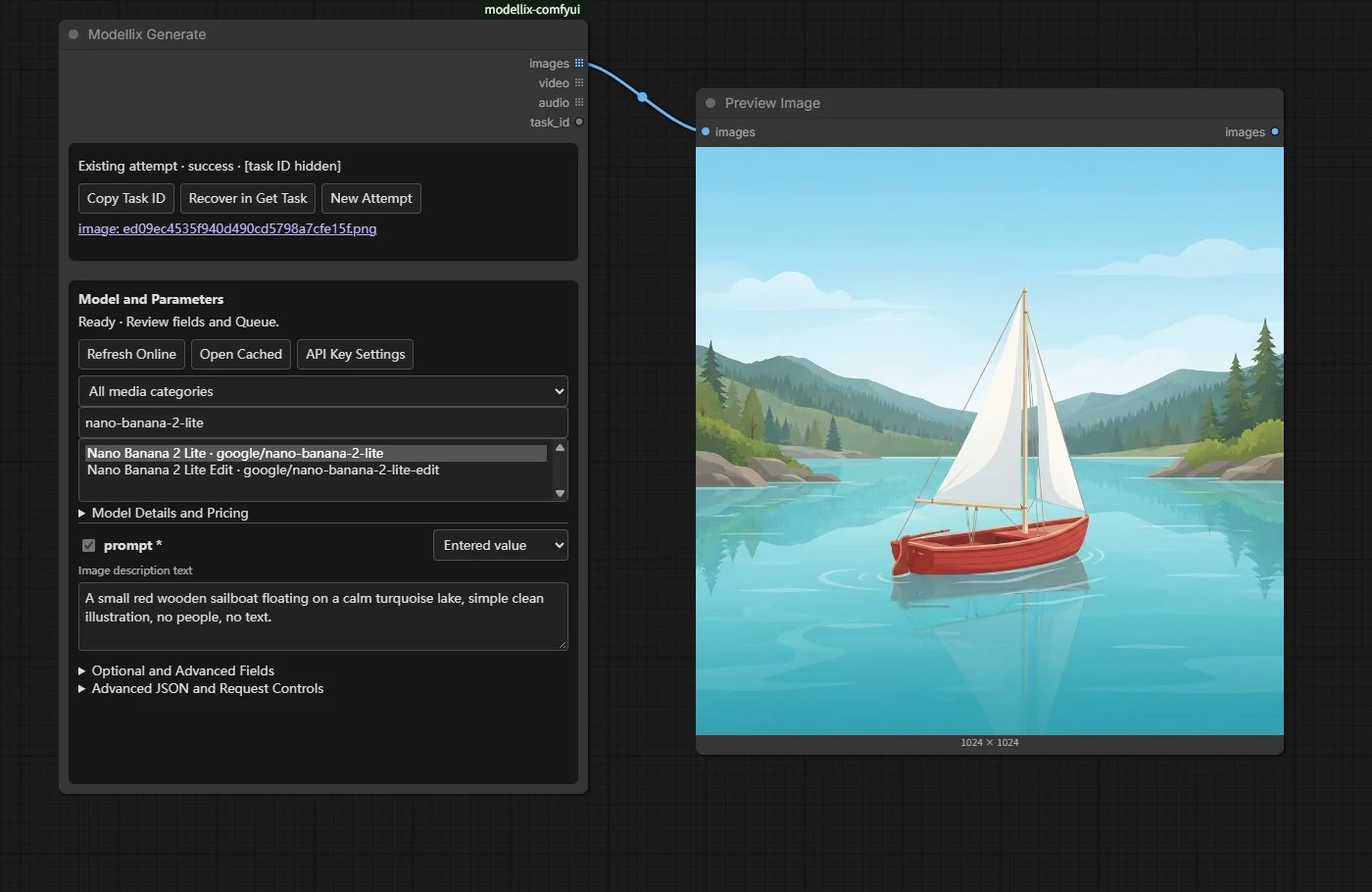
A real text-to-image workflow returns the generated sailboat as a native IMAGE. Task identifiers are concealed in these screenshots.
Work with Model Fields
Required fields appear before optional and advanced fields. The form preserves typed enum values, numeric bounds, defaults, nested objects, and arrays. When a schema has alternative branches, select the intended branch before connecting references. Arrays retain their order. For a media field, choose a URL or a native connection. For example, an image-edit model may use animage array, while an image-to-video model uses separate first_frame_image and last_frame_image fields. Connect Load Image to the relevant IMAGE socket; Generate encodes and uploads the image automatically.
Use one source per field. Remove an entered URL before binding a native input. A scalar image field rejects an image batch with more than one image; an array field accepts the batch in its original order. Connected primitive values and URL lists are also checked against the selected field’s type and limits.
Nodes and Outputs
Generate, Get Task, and Upload Media are output nodes: they can run without a Preview or Save connection. Mute an unused output node or use ComfyUI’s partial execution controls to exclude it from a queue.
Images, videos, and audio use separate, fixed sockets. A model’s applicable media outputs are lists of native resources, preserving different dimensions, lengths, and sample rates. Unavailable media sockets block their downstream branches. The package does not emit placeholder images or empty media.
Image, Video, and Audio Workflows
Download importable workflows, their API prompt equivalents, and input preparation instructions from Examples. The same workflows appear in ComfyUI’s Template Browser under the package’s examples.
Use references that satisfy each model’s duration, size, content, and consent requirements. Modellix models have different field names and constraints; the selected model’s schema and description remain authoritative. Video input and output use ComfyUI’s native VIDEO objects and do not require third-party video nodes.
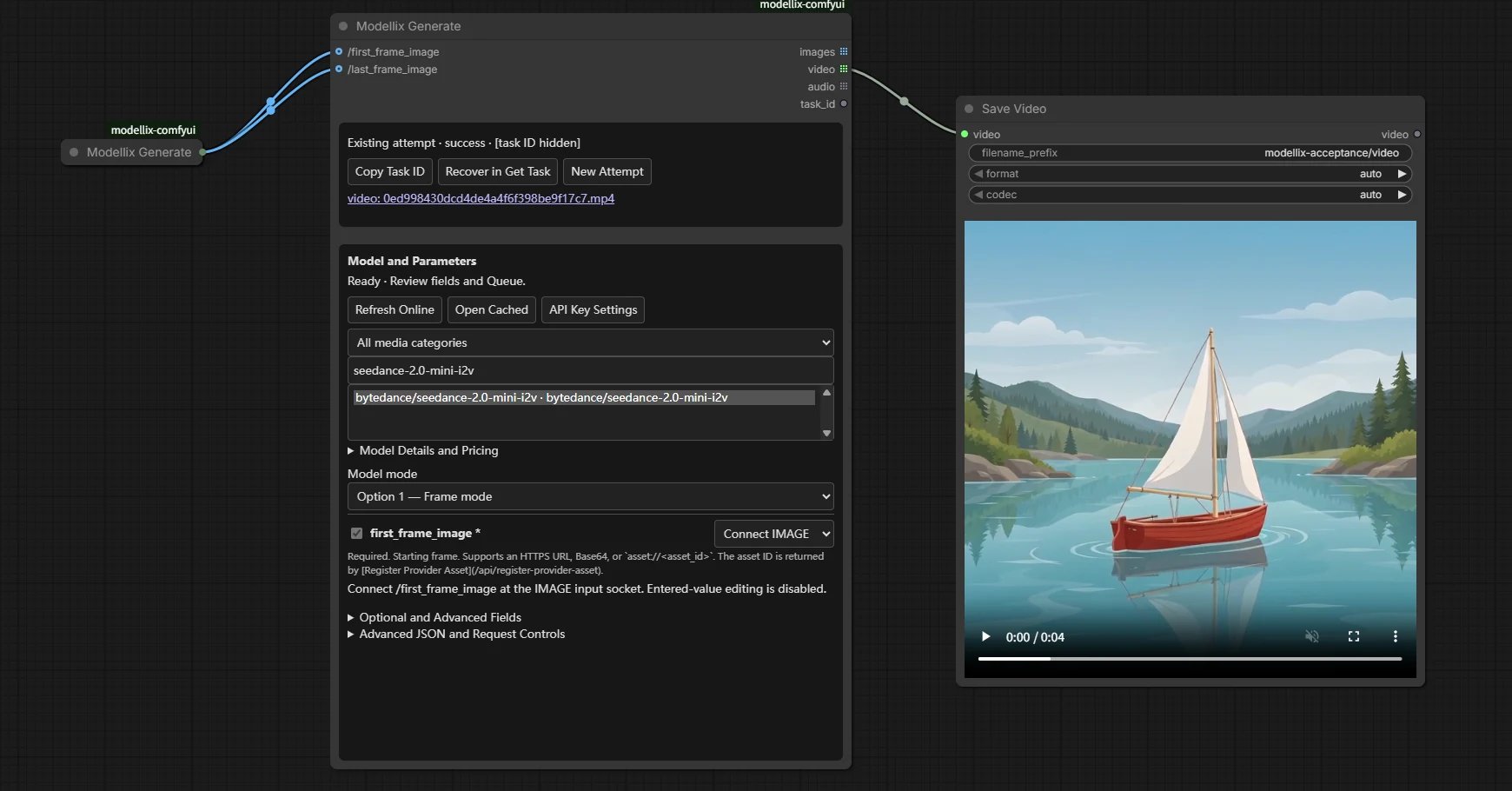
The first and last frames have separate typed connections. The completed video uses native Save Video.
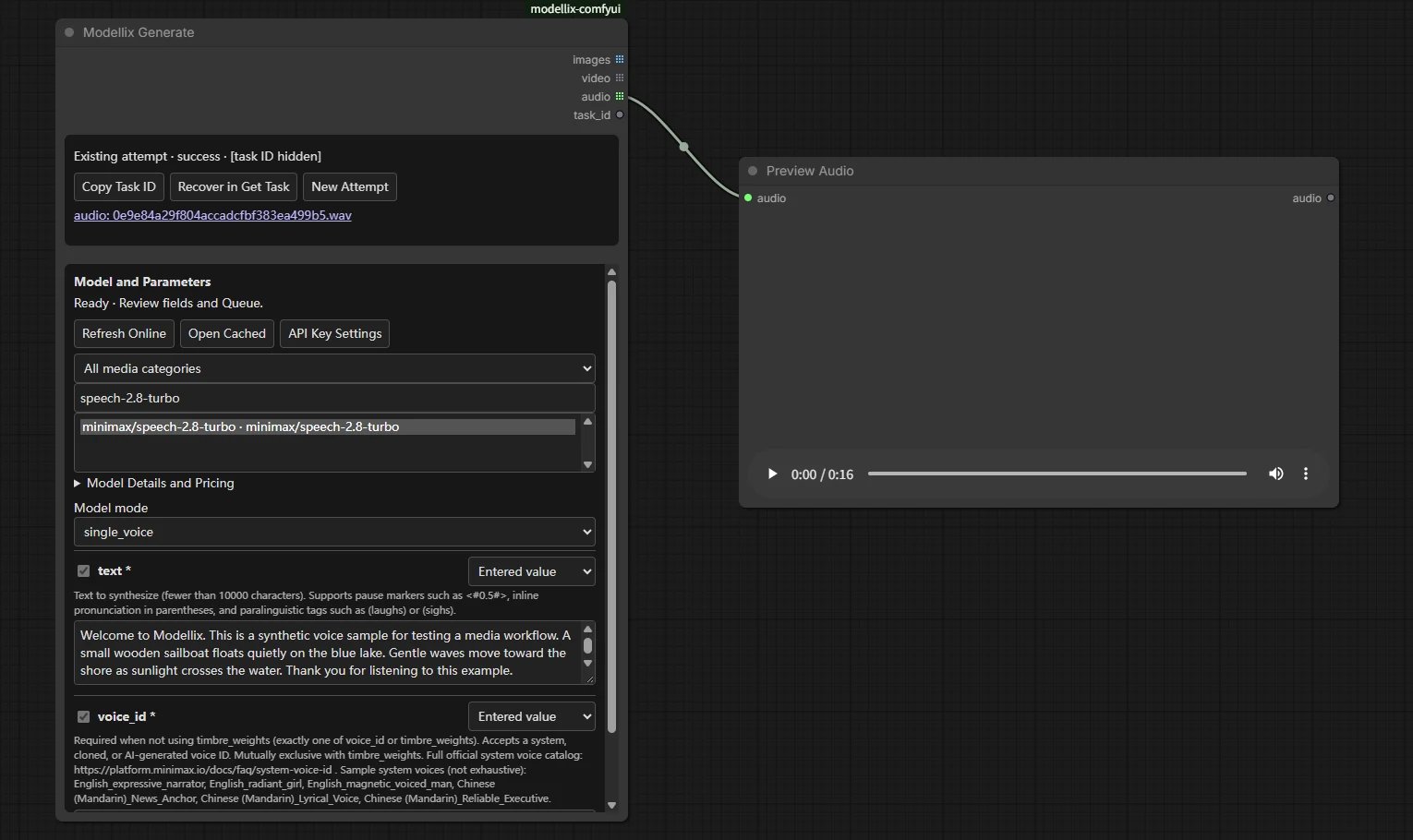
Speech generation returns native AUDIO with its actual sample rate and a playable result.
Submit Now and Retrieve Later
Wait is the default. It submits one generation request, waits within the configured local deadline, downloads results, and returns native media. Choose Submit only to return the confirmed task ID immediately. This mode performs no task polling or result downloads. Its media outputs block downstream branches. Connecttask_id to Modellix Get Task:
- Wait continues reading the existing task until completion or the local deadline.
- Snapshot performs one logical task read and returns its current status. Pending or processing tasks have blocked media outputs. Queue again to refresh; this node actively queries on each queue.
resume_task_id input do not upload inputs or create another generation request. Use the same API key context that owns the task.
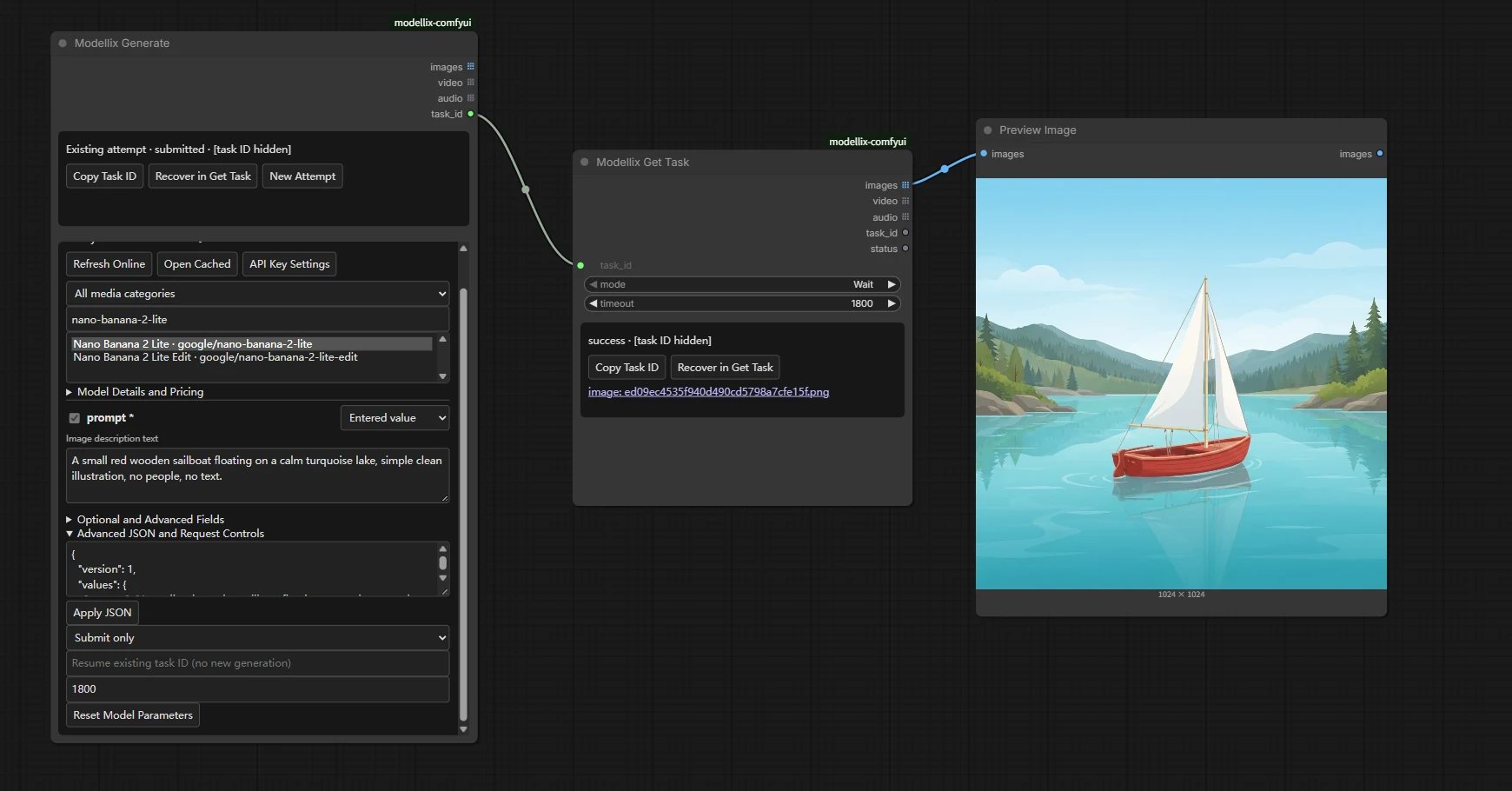
Submit only hands the confirmed task to Get Task. Reading the result does not submit another generation.
Upload and Combine Reference URLs
Generate uploads connected native media internally. Use Modellix Upload Media when you want to reuse upload URLs across nodes or combine them with existing references. Connect one or more native media inputs and choose the upload group order. Theurls, file_ids, and media_types output lists have matching indexes. Use url_list for array-valued model fields.
Modellix URL List accepts one HTTPS URL per line, plus optional existing and additional lists. Choose Append or Prepend for the entered lines. Blank lines are removed; duplicates, commas inside a URL, and reference order are preserved. Connect its custom MODELLIX_URL_LIST output to a compatible array field. Scalar fields reject this list connection.
REST uploads default to a 200 MiB per-file limit. Team file quotas and model-specific restrictions also apply. Uploads are serial and successful content uploads can be reused while valid. Quota errors do not trigger automatic remote file deletion; see Upload Media Files.
Cancel, Resume, and Start a New Attempt
ComfyUI Cancel stops local polling, uploads, submission waits, and downloads. It does not promise to cancel remote generation or refund a charge. An in-flight submission can have an unknown outcome; check your Console history before starting another attempt. Normal queues retain the node’s saved attempt nonce. Repeating a queue, changing Wait to Submit only, clearing media cache, or restarting the host reuses the existing task rather than silently submitting it again. If the original response was lost and no task ID is known, the attempt remains protected against automatic replay. Use New Attempt only when you intend another paid request. This changes the saved nonce; the next queue submits once. Headless clients express the same intent by explicitly changingrun_nonce. Duplicating a node gives the copy its own instance ID.
New Attempt also clears an entered recovery ID and the previous task display. Reviewing an updated model schema alone retains the existing paid attempt and cannot replay an unknown submission. The configured local timeout includes model discovery, schema loading, and waiting for shared local work.
Task records persist separately from media cache. A missing or expired local result is downloaded again from the original task when available. An expired remote result requires your explicit choice of a new attempt. Active result files remain protected while the host may still reference them.
If a downloaded result cannot be decoded, resume the same task to fetch a fresh copy. Damaged protection records remain blocked instead of being treated as a new, unsubmitted request.
Errors and Troubleshooting
Generation and upload POST requests are never automatically retried. Safe queries and downloads use bounded retries under one local deadline. Keep the task ID when reporting an issue, and never include your API key.
See the package README for cache locations, advanced configuration, headless prompt format, current test coverage, and support matrix.